

RAID 0, 1, 5, 6 and 10 Explained: How to Choose the Right Level
What RAID 0, 1, 5, 6 and 10 are, how many drives each needs and which to choose. Comparison table and practical advice for business servers and NAS.

In this article
- RAID Levels Compared: 0, 1, 5, 6 and 10
- What RAID Is and Why the Level Matters
- RAID 0: Maximum Performance, Zero Protection
- RAID 1: Simple, Reliable Mirroring
- RAID 5: Distributed Parity, But Mind the Rebuild
- RAID 6: Double Parity for Large Arrays
- RAID 10: Performance and Resilience for Databases and VMs
- How Much Usable Space Is Left: Practical Worked Examples
- RAID 0 vs RAID 1, RAID 5 vs RAID 6, RAID 10 vs RAID 5
- The Most Common Mistake: Confusing RAID with Backup
- Need Advice on Your Storage?
- Related Service: Server Support and Backup
Choosing the right RAID level means balancing three factors: redundancy, performance and usable capacity. For most small and mid-sized businesses the answer is RAID 1 on small servers, RAID 10 for databases and virtual machines, and RAID 6 on NAS units with many drives. Avoid RAID 0 wherever data matters, and treat RAID 5 with caution on high-capacity drives.
For more than 25 years, as a B2B System Integrator based in Melzo (Milan), we have configured and recovered RAID arrays of every kind. This guide explains, without needless jargon, how each level works and how to avoid the most expensive mistake of all: picking a configuration that does not actually protect your business data.
RAID Levels Compared: 0, 1, 5, 6 and 10
| Level | Minimum drives | Fault tolerance | Usable capacity | Recommended use |
|---|---|---|---|---|
| RAID 0 | 2 | None | 100% | Scratch storage, cache |
| RAID 1 | 2 | 1 drive | 50% | Small servers, operating system |
| RAID 5 | 3 | 1 drive | n-1 | Archives with mid-capacity drives |
| RAID 6 | 4 | 2 drives | n-2 | NAS and arrays with large drives |
| RAID 10 | 4 | 1 per pair | 50% | Databases, virtualisation, high I/O |
Quick answers to the most common questions:
- What is RAID 1: mirroring, two drives holding identical data; it survives one drive failure.
- RAID 5, how many drives: at least 3. With 4 x 2 TB drives, usable capacity is 6 TB; it survives one drive failure.
- RAID 6: at least 4 drives, double parity, survives two drive failures.
- RAID 10: at least 4 drives, mirrored pairs in a stripe; high performance and fast rebuilds.
- RAID 0: no protection. One failed drive loses everything.
What RAID Is and Why the Level Matters
RAID (Redundant Array of Independent Disks) is a technology that combines several drives into a single logical volume to improve performance, capacity or fault tolerance. Those drives can be managed by a dedicated hardware controller or in software, as with ZFS, mdadm on Linux or Storage Spaces on Windows Server.
The key point is that each RAID level distributes data differently. Some levels duplicate it (mirroring), others split it across multiple drives (striping), and others add parity information so a lost drive can be rebuilt. The level you choose determines what happens when a drive fails: nothing at all, a simple alert, or the total loss of the volume. Getting this wrong usually means discovering the problem at the worst possible moment.
RAID 0: Maximum Performance, Zero Protection
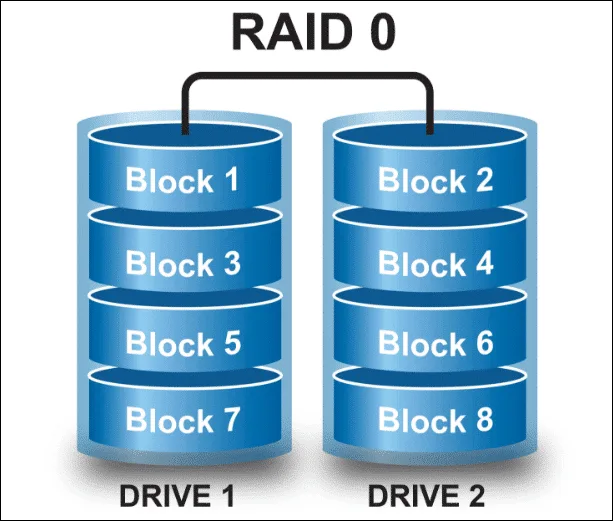
RAID 0 stripes data across two or more drives with no redundancy whatsoever. The result is high throughput and the full combined capacity of every drive, but no fault tolerance at all: if a single drive fails, the entire volume is lost.
It only suits specific scenarios, such as scratch storage, cache or video-editing workstations where the data already exists somewhere else. For archives, line-of-business applications, shared folders or backups, RAID 0 is the wrong choice. With two drives the probability of failure doubles compared with a single disk, and it is also the configuration that is most costly to recover from, because every unit has to be worked on at the same time.
RAID 1: Simple, Reliable Mirroring
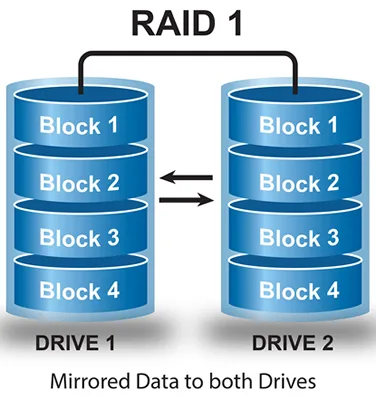
RAID 1 keeps an identical copy of the data (mirroring) across two drives. Usable capacity equals a single disk, but the advantage is simplicity: if one unit fails, the system keeps running on the other without interruption. Replacing the drive is straightforward and the rebuild is linear.
It is the ideal configuration for small servers, operating-system volumes, two-drive machines and organisations that want protection without complexity. The limitation is scalability: with only two drives you are tied to the capacity of one. For larger volumes it is worth looking at RAID 10, 5 or 6 instead.
RAID 5: Distributed Parity, But Mind the Rebuild
RAID 5 uses striping with parity distributed across at least three drives. It tolerates the failure of one drive: the data is reconstructed from the parity held on the remaining units. Usable capacity equals every drive minus one, so it offers a sensible compromise between space and safety.
The hidden risk lies in the rebuild phase. On high-capacity drives (above 4-6 TB) a rebuild can run for many hours or even days, with every drive under heavy stress. If a second drive fails during that window, or an unrecoverable read error surfaces, the whole array is lost. For that reason, on important archives with large drives, we now recommend RAID 6 instead.
RAID 6: Double Parity for Large Arrays
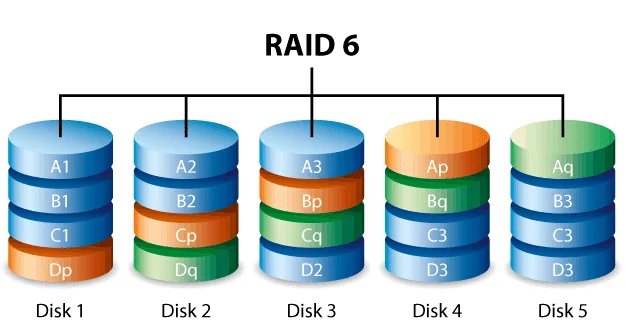
RAID 6 extends the RAID 5 concept by adding a second distributed parity, across at least four drives. The benefit is decisive: it tolerates the simultaneous failure of two drives. Even if a second drive fails while the first is still rebuilding, the data stays safe.
Usable capacity equals every drive minus two, and write performance is slightly lower because of the double parity calculation. It is the recommended choice for NAS units and servers with many high-capacity drives, where the risk window during a rebuild is the real enemy. For most structured business archives, RAID 6 is the best balance between safety and space.
RAID 10: Performance and Resilience for Databases and VMs
RAID 10 (or 1+0) combines mirroring and striping: drives are first grouped into mirrored pairs, and those pairs are then striped together. It needs at least four drives and usable capacity is half the total. In return you get high performance, in both reads and writes, and a fast rebuild because it only involves the twin drive rather than the whole array.
It is the preferred configuration for databases, virtualisation hosts, business applications with many concurrent users and any workload where speed and reliability both count. It tolerates multiple failures, provided they do not hit both drives in the same pair. The higher cost in drives is repaid by operational continuity, which is why it is the standard in our server virtualisation projects.
How Much Usable Space Is Left: Practical Worked Examples
The table at the top of this guide summarises usable capacity as a percentage or a formula (n-1, n-2), but it's easier to reason about with real numbers. Here are some examples using 2 TB drives, a common size in SME-class servers:
- RAID 1 with 2 x 2 TB drives: usable capacity 2 TB (50% of the total installed).
- RAID 5 with 3 x 2 TB drives: usable capacity 4 TB, i.e. (3 - 1) × 2 TB.
- RAID 5 with 4 x 2 TB drives: usable capacity 6 TB, i.e. (4 - 1) × 2 TB.
- RAID 6 with 4 x 2 TB drives: usable capacity 4 TB, i.e. (4 - 2) × 2 TB.
- RAID 10 with 4 x 2 TB drives: usable capacity 4 TB, i.e. (4 drives × 2 TB) / 2.
The calculation scales proportionally with different drive sizes (with 4 TB drives, every figure doubles), but the principle stays the same: the more parity or mirroring you add for safety, the less capacity actually remains available for the same number of installed drives. It's a trade-off to work through with whoever is sizing the server, not something to discover after the array is already built.
RAID 0 vs RAID 1, RAID 5 vs RAID 6, RAID 10 vs RAID 5
- RAID 0 vs RAID 1: RAID 0 is faster and uses all the capacity, but a single failed drive loses everything; RAID 1 halves the usable space and keeps the data on two drives. For data that matters, choose RAID 1.
- RAID 5 vs RAID 6: RAID 5 survives one failed drive and gives up one drive to parity; RAID 6 survives two and gives up two. On large drives RAID 6 is safer during a rebuild.
- RAID 10 vs RAID 5: RAID 10 writes faster and rebuilds quickly, but only half of the drives are usable; RAID 5 gives more space from the same drives, with slower writes and a riskier rebuild. For databases and virtual machines, RAID 10.
- RAID and NAS: RAID is the method used to combine drives; a NAS is the network device that holds the drives and usually manages RAID internally. A NAS can be set up as RAID 1, 5, 6 or 10.
The Most Common Mistake: Confusing RAID with Backup
RAID protects against the failure of a drive, not against the loss of data. Ransomware encrypts every unit in the array in exactly the same way. An accidental deletion propagates instantly to the mirror. A controller fault or an error during a rebuild can compromise the entire volume, however redundant it is.
That is why redundancy must always sit alongside a proper business backup and disaster recovery strategy, with multiple copies kept off-site and regular restore tests. When an array is already compromised and the data is no longer accessible, you need specialist help: our data recovery centre works on forensic copies of the drives, never writing to the originals, to maximise the chances of a successful recovery.
Need Advice on Your Storage?
Designing the right array, or recovering a RAID that will not rebuild, takes real hands-on experience. The TN Solutions team, certified to ISO 9001 and ISO 27001, helps you choose the configuration best suited to your infrastructure and steps in with priority handling during emergencies. Call 02 9517550 now or reach us through our contact page: you will receive a clear technical assessment with no obligation.
Related Service: Server Support and Backup
If you are weighing up how to protect your servers' RAID array, our business server support covers storage configuration, monitoring and maintenance, while our business server backup service pairs the RAID with verified off-site copies: the real protection against ransomware and accidental deletion that RAID alone cannot provide.
Frequently asked questions
Which RAID is the safest for a business?
It depends on the workload. For pure protection of archives with many drives, RAID 6 is the safest thanks to its double parity. For databases and virtual machines, RAID 10 offers the best balance between safety and performance. RAID 1 remains an excellent choice for small servers.
Does RAID replace a backup?
No. RAID only guards against the physical failure of one or more drives. It does not protect against ransomware, accidental deletion, human error or controller faults. A separate, tested backup, kept off-site as well, remains essential for guaranteeing business continuity.
Why is RAID 5 considered risky on large drives?
With multi-terabyte drives, the rebuild after a failure takes a long time and puts every unit under heavy stress. If a second drive fails in that window, or an unrecoverable read error appears, the array is lost. RAID 6, with its double parity, removes this risk.
How many drives does each RAID level need?
RAID 0 and RAID 1 require at least 2 drives, RAID 5 at least 3, and RAID 6 and RAID 10 at least 4. In practice, production arrays use more drives than the minimum to increase capacity and performance.
RAID 5: how many drives do you need?
At least 3. Usable capacity is that of all drives minus one: 3 x 2 TB drives give 4 TB and 4 x 2 TB drives give 6 TB. RAID 5 survives the failure of a single drive; with many drives or very large ones, RAID 6 is the safer choice.
What is RAID 1 and when should you use it?
RAID 1 (mirroring) writes the same data to two drives: if one fails, the server keeps running on the other. It suits small servers, operating system volumes and modest archives; usable capacity is that of a single drive.
What is the difference between RAID 5 and RAID 6?
RAID 5 has one parity and tolerates one failed drive; RAID 6 has two and tolerates two. RAID 6 needs at least 4 drives and writes slightly slower, but it lowers the risk of data loss during a rebuild on large drives.
Are NAS and RAID the same thing?
No. RAID is the way several drives are combined into a single volume; a NAS is the network device that holds the drives and often manages RAID internally.
Can I change RAID level without losing data?
Some controllers and file systems allow online migration between levels, but it is a delicate operation that should always be preceded by a full, verified backup. Before altering a production array, plan the work with an experienced engineer to avoid irreversible data loss.
Does RAID work with SSDs, or only with HDDs?
Yes. Every RAID level described in this guide works with both mechanical drives (HDDs) and SSDs, and modern RAID controllers are also optimised for NVMe. SSDs add extra performance, especially for random reads, but the rules on usable capacity and fault tolerance stay the same.
Is RAID compatible with business NAS units?
Yes, most professional NAS units handle RAID in software, often through a simplified interface that hides part of the configuration complexity. The same rebuild-risk considerations covered for RAID 5 and RAID 6 still apply.
Can I set up RAID on a server that is already in production?
In some cases, yes, with controllers or file systems that support online migration between levels, but it's a delicate operation that needs careful planning: it should always be preceded by a full backup and, where possible, carried out in a scheduled maintenance window to limit the impact on users.
Technology partners






Want to discuss it with our team?
We analyse your infrastructure for free and propose the most suitable solution.