

How to Clear Your Cache on a PC
How to clear your cache on a pc from Explorer, Chrome, Edge and memory. What is the cache? Why empty the cache? How to empty the cache?

Clear cache and all data from Explorer, Chrome, Edge and memory
A common problem, when surfing the internet, is the display of outdated webpages; most of the time, in fact, not only the browser is slower but you are having difficulties also in viewing the changes just made. Don’t panic! To overcome this problem that’s enough to clear the cache therefore forcing the program to download the latest versions of the most frequently visited web sites.
What is the cache?
The browser cache is a software or hardware component that isn’t immediately visible to the user which is used to store information that is expected to be requested shortly. As for browsers, the pages or their elements (such asimages, html files, CSS style sheets) are kept in the cache as they are loaded while browsing the Internet.
Why empty the cache?
- If too much content accumulates in the cache, it can slow down your computer
- If the cached data are obsolete, they appear instead of the current content
- If the cache is emptied, the data tracks stored in the browserwill also be deleted
You can therefore clear the cache frequently in case you need to view the most up-to-date content online and optimize your browsing experience.
How to empty the cache?

There are several ways to clean the cache. Instructions to clear the cache for the most common browsers.
Press the [Ctrl],[Shift] and [Del] Key together. A Popup-Window opens. "Delete browser history".
With Mac: "Command" + "Shift" + "Del"
Internet Explorer: how to clear the cache
- Click on the cog-symbol in the upper right corner of the browser and open the menu "Extras"
- Select the item "Internet options"
- In the tab "General" you can find a section "Browser history". When you click on the button "Delete" a new Window opens
- Now you are on the same page as in the description above
- Restart Internet Explorer
Mozilla Firefox: how to clear the cache
Click the menu button and choose "Options"
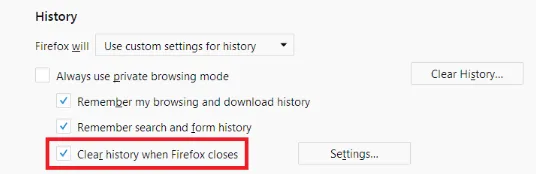
Select the "Privacy & Security" panel and go to the "History" section
In the drop-down menu next to "Firefox will", choose "Use custom settings for history"
Select the check box for "Clear history when Firefox closes"
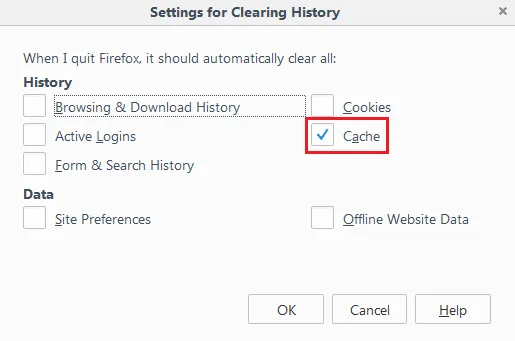
Beside Clear history when Firefox closes, click the "Settings" button. TheSettings for Clearing History window will open.
In the Settings for Clearing History window, put a check mark next to Cache
Click “OK” to close the Settings for Clearing History window
Close the about: preferences page. Any changes you've made will automatically be saved
Close all browser windows andre-open Firefox
Google Chrome: how to clear the cache
- Click on the "Menu" in the upper right corner of Google Chrome and open the browser setting. You can recognise the menu by the three stacked dots
- Next, you select the option "more tools"
- In the next step click on "Delete Browser data"
- Restart Chrome
Microsoft Edge: Clearing Cache and Cookies
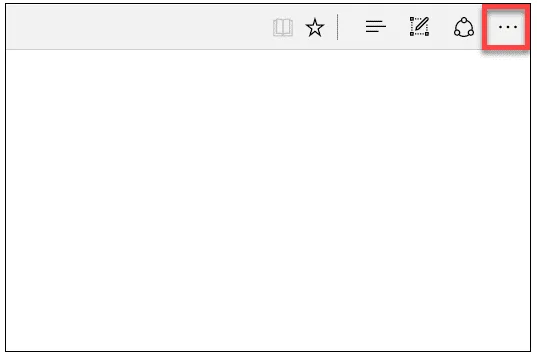
Click on the menu button situated in the upper right corner
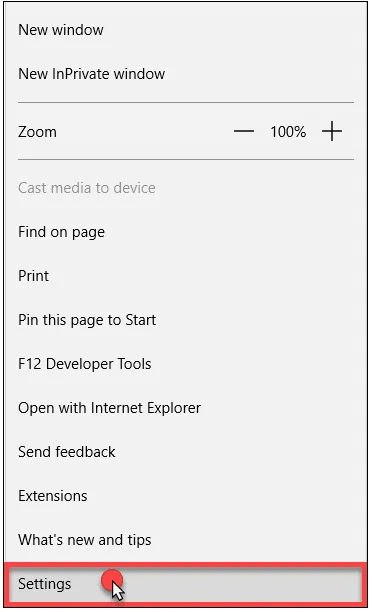
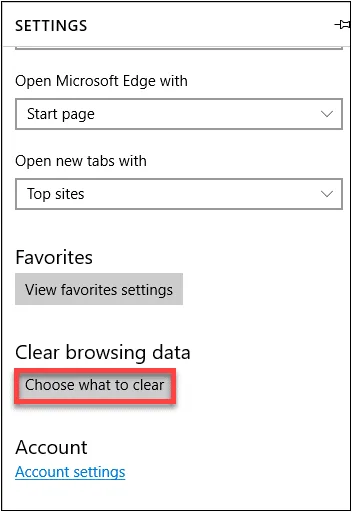
Click on "Settings"
Under Clear browsing data, click on "Choose what to clear"
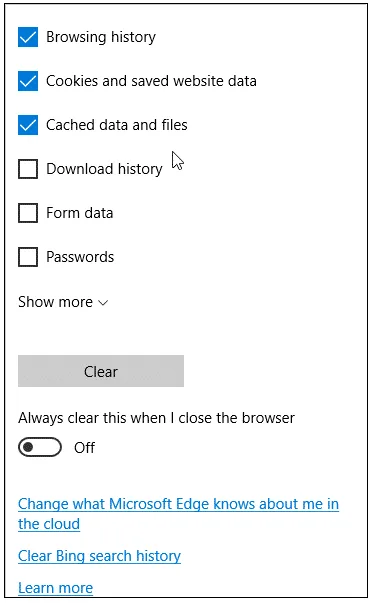
Check the boxes next to Cookies and saved website data and Cached data and files
Click on Clear
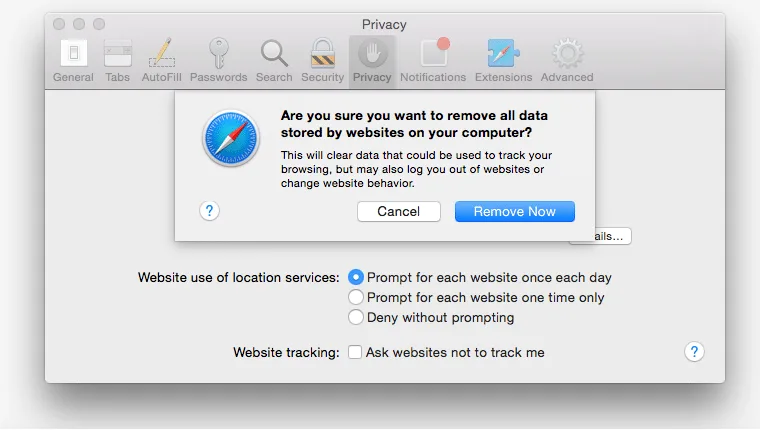
Safari 8.0 - 10.0 (Mac): how to clean the cache
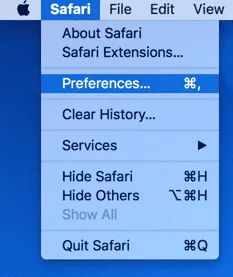
Click Safari in the upper left hand side of your screen. In the menu that appears, clickPreferences
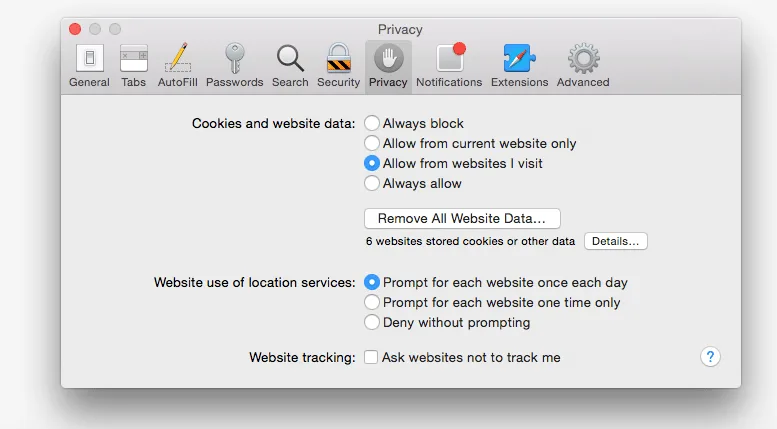
In the window that appears, click the Privacy tab
Click Remove Now in the pop up window that appears
Prevention is better than cure, don't you agree? To restore the proper functioning of your computer empty the cache at least once every week, maximum two, and you will not regret it. Word of T&N Solutions!
Frequently asked questions
How do you clear your browser cache?
Open the browsing history/data settings, select "cached images and files" and confirm the deletion; on Windows the quick shortcut is Ctrl+Shift+Delete, on Mac it's Cmd+Shift+Delete.
What is browser cache?
It's a software component that stores previously downloaded pages and files (images, HTML, stylesheets) to speed up loading times on future visits.
Why isn't the web page I'm looking at up to date?
Because the browser is showing the version saved in cache instead of downloading the latest one; clearing the cache forces the browser to download the updated content.
How often should you clear your cache?
It's advisable to clear it at least once a week, or every two weeks at most, to avoid slowdowns and outdated content.
How do you clear the cache on Google Chrome?
Open the three-dot menu, select "More tools" then "Clear browsing data", choose the time range, tick "cached images and files" and confirm, then restart Chrome.
Technology partners






Want to discuss it with our team?
We analyse your infrastructure for free and propose the most suitable solution.